If the retailer has enabled credit card payments, use the following process.
- Follow the process on one of the previous tabs up to the Payment Information step.
- Select the Credit Card option and enter credit card information. Surcharge warnings display at the top of the page next to the Credit Card option. Payment information can be stored for future use by selecting the Save my payment information checkbox at the bottom of the page.
Note: Surcharges are not applied to ACH payments.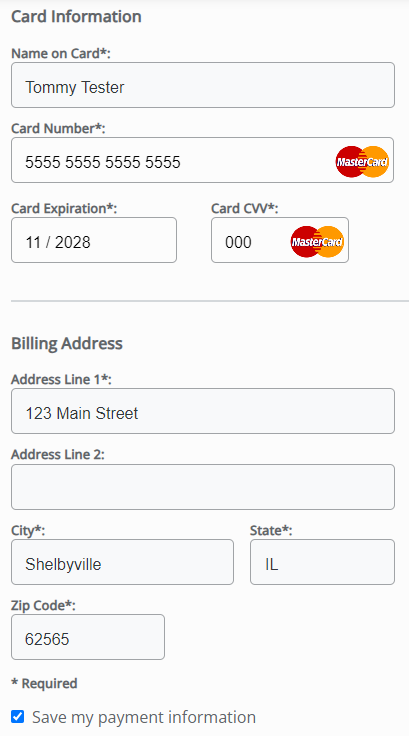
- Payment terms can be viewed by selecting the Terms link at the bottom of the page.
- On the Review Payment page, review all payment details. If a surcharge has been added to the credit card transaction, select the I acknowledge (%) surcharge checkbox.
- Enter any additional comments in the Comments on Payment field to be added to the payment receipt. Payment terms can again be viewed by selecting the Terms button at the bottom of the page.
- Select Submit Payment. Avoid selecting the Back button or refreshing the browser while the payment is processed.

- A Payment Submitted message appears at the bottom of the screen when the payment has been successfully saved. The newly saved payment displays on the Payments page.
